Updating your mobile app on the Google Play Store is a simple process when you know the correct steps. Whether you’ve fixed bugs, added features, or improved performance, updating your app helps deliver a better experience to users. The Play Console allows developers to upload a fresh APK/AAB file, update release notes, and publish changes without affecting existing users.
Below are the clear, easy-to-follow steps for updating your app with a new release on Google Play Console.
Steps to Update Your App on Google Play Store
1. Make App Changes in Your Code
-
Implement new features or bug fixes in your codebase.
-
Test the updated app thoroughly on real devices or emulators.
2. Increase Version Code & Version Name
-
Update versionCode (must be higher than previous release).
-
Update versionName (visible to users).
Example (Android app/build.gradle):
|
1 2 |
versionCode 3 versionName "1.2.0" |
3. Build Signed Release APK or AAB
-
Use your existing signing key (keystore).
-
Generate a signed release AAB (recommended by Google).
4. Login to Google Play Console
-
Visit the Google Play Console.
-
Select the app you want to update.
5. Go to Production → Releases
-
Navigate to Production section.
-
Click Create New Release or Edit Release.
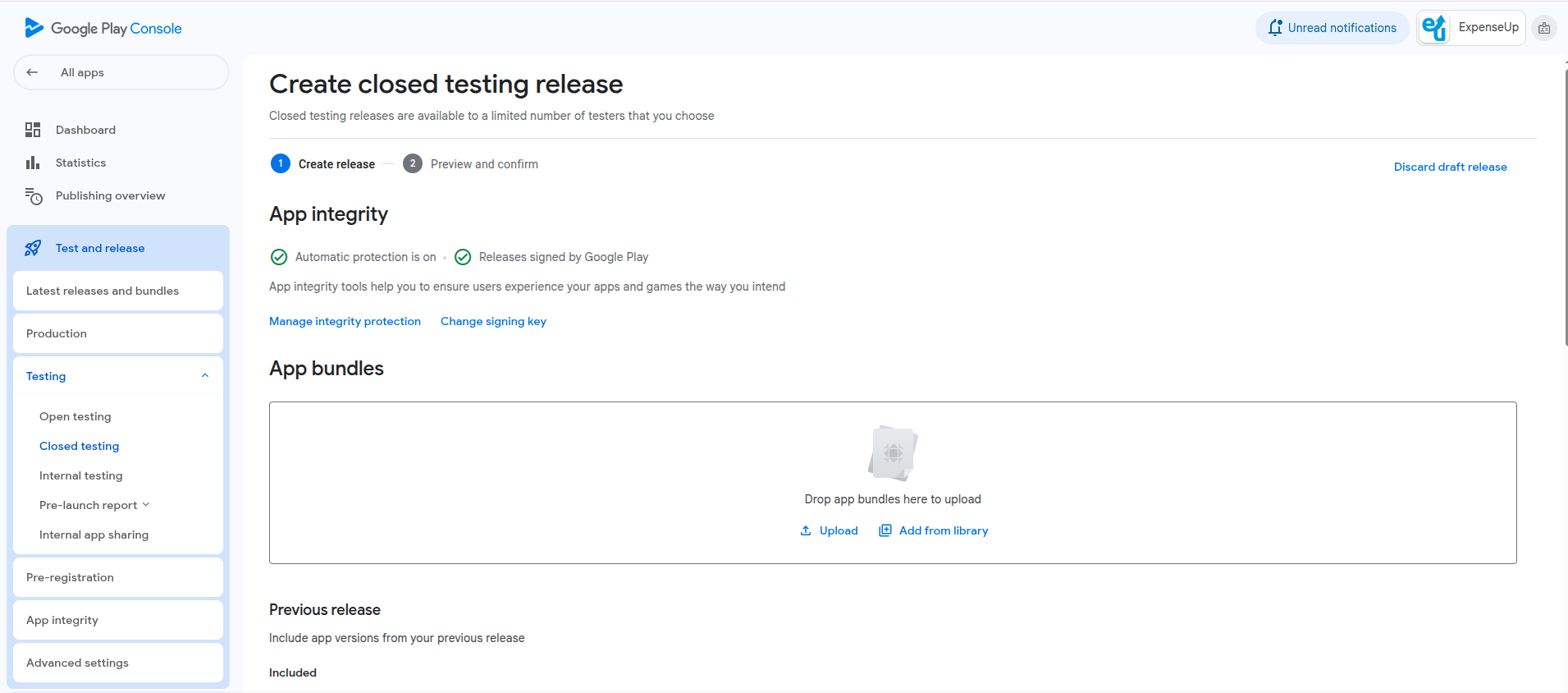
6. Upload the New AAB/APK File
-
Drag and drop your new signed release file.
-
Ensure the version code is higher than the previous build.
7. Add Release Notes
-
Describe what’s new in this update (bug fixes, features, improvements).
-
This helps users understand changes in the latest version.
8. Review App Content & Policies
-
Ensure your app still complies with Google policies.
-
Update Data Safety or Permission declarations if something changed.
9. Publish Your Release
-
Click Review Release → Publish.
-
Google reviews updates typically within a few hours to 48 hours.
10. Update Goes Live
-
Once approved, your updated version appears automatically to all users.
-
Track performance, errors, and download stats in Play Console analytics.